

Diagnostics
The Diagnostics group in the sidebar contains three surfaces for investigating and unblocking sync issues: Jobs & Logs, Webhooks, and Cursors. This section explains what each one shows and how to use it when something stalls.
Jobs & Logs
Section titled “Jobs & Logs”Open Jobs & Logs in the sidebar (under Diagnostics).
What is a job?
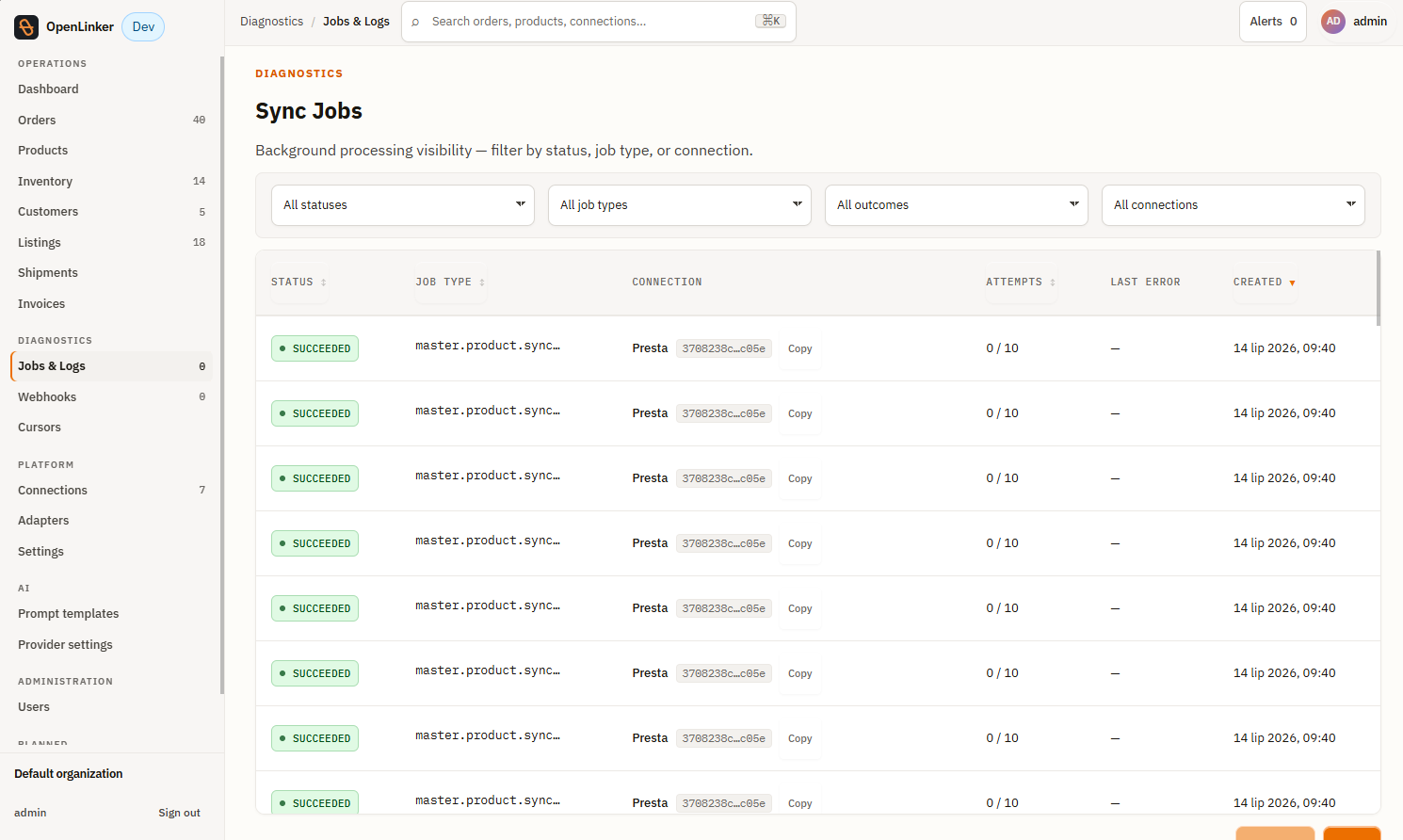
Section titled “What is a job?”Every sync operation in OpenLinker runs as a background job under the Sync Jobs page. Jobs are enqueued by the scheduler (on a cron schedule), by webhook ingestion, or by manual triggers (e.g. “Trigger sync” on a connection detail page). The worker process picks them up and executes them.
Job list
Section titled “Job list”Filters at the top let you narrow by status, job type, outcome, and connection. Each row shows:
- Status — current execution state (color-coded chip)
- Job type — the job’s function, e.g.
master.product.syncAll,marketplace.order.sync,inventory.propagate,master.inventory.syncByExternalId - Connection — which connection this job ran against (where applicable)
- Attempts — how many times the job has been tried
- Last error — a short excerpt of the last error message (if any)
- Created — when the job was enqueued
| Status | Meaning |
|---|---|
| queued | Waiting to be picked up by the worker |
| running | Currently being executed |
| succeeded | Completed without error |
| dead | Exhausted all retries; the job will not run again without manual intervention |
Use the status filter to show only dead or running jobs when investigating an issue.
🔍 If orders or inventory updates are missing: filter by
deadstatus and look formarketplace.order.syncorinventory.propagatejobs. Dead jobs indicate a persistent error — click the job to read the failure reason.
Job detail
Section titled “Job detail”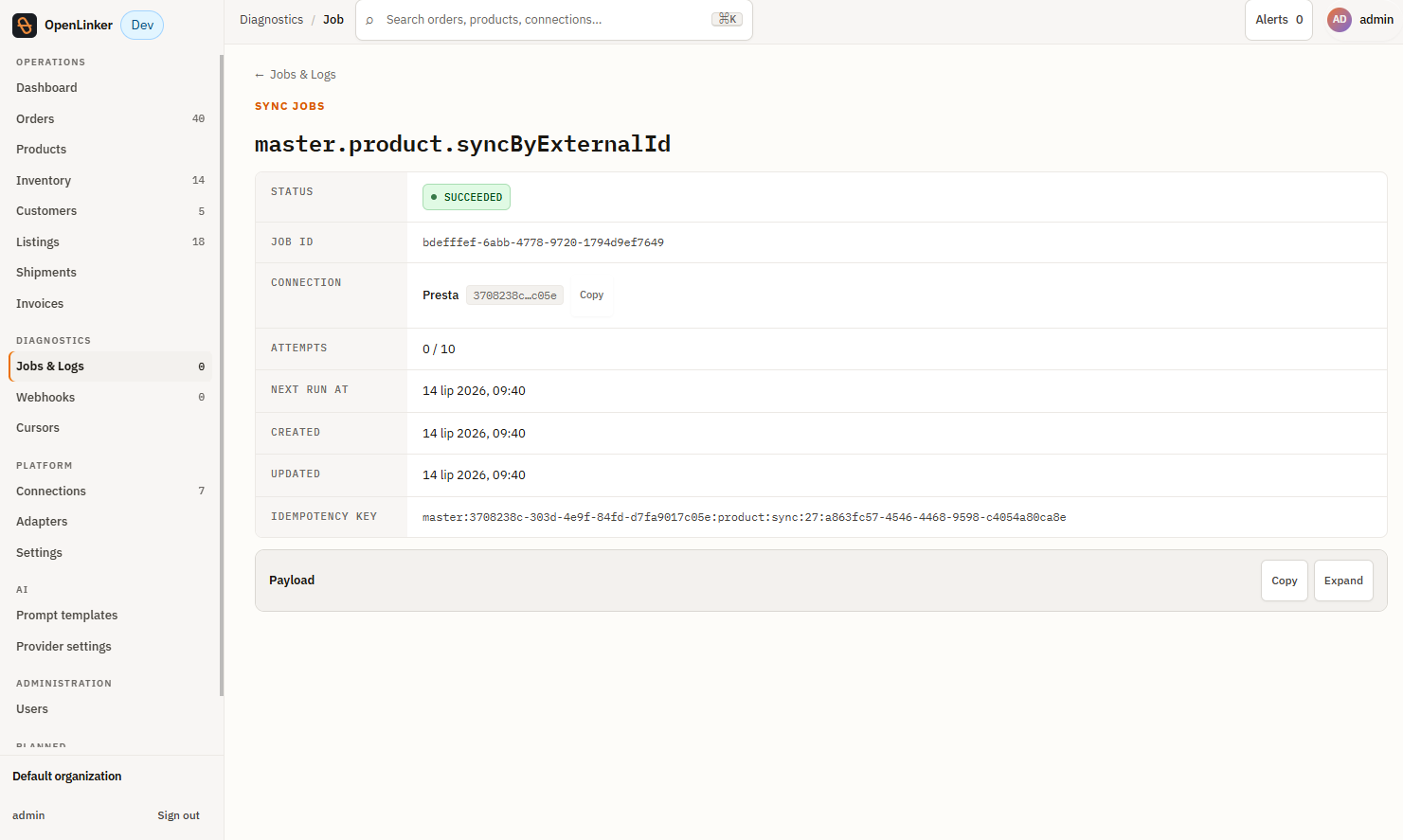
Click any job row to open the detail page. It shows:
- Status — current state (e.g. SUCCEEDED)
- Job ID — internal identifier
- Connection — which connection this job ran against
- Attempts — number of attempts made out of the maximum (e.g.
0 / 10) - Next run at — scheduled time for the next run (for recurring jobs)
- Created / Updated — lifecycle timestamps
- Idempotency key — the deduplication key used to prevent double-processing
- Payload — the input data the job was given (expandable; click Expand to read)
If a job is in dead state, expand the payload to read the last error. Fix the underlying cause (expired API key, missing product mapping, unreachable shop URL) then trigger a fresh sync from the connection detail page.
Webhooks
Section titled “Webhooks”Open Webhooks in the sidebar (under Diagnostics).
What is the webhook log?
Section titled “What is the webhook log?”OpenLinker receives inbound webhooks from connected platforms (currently PrestaShop). Each delivery is logged here — whether it was accepted, deduplicated, or rejected.
Webhook list
Section titled “Webhook list”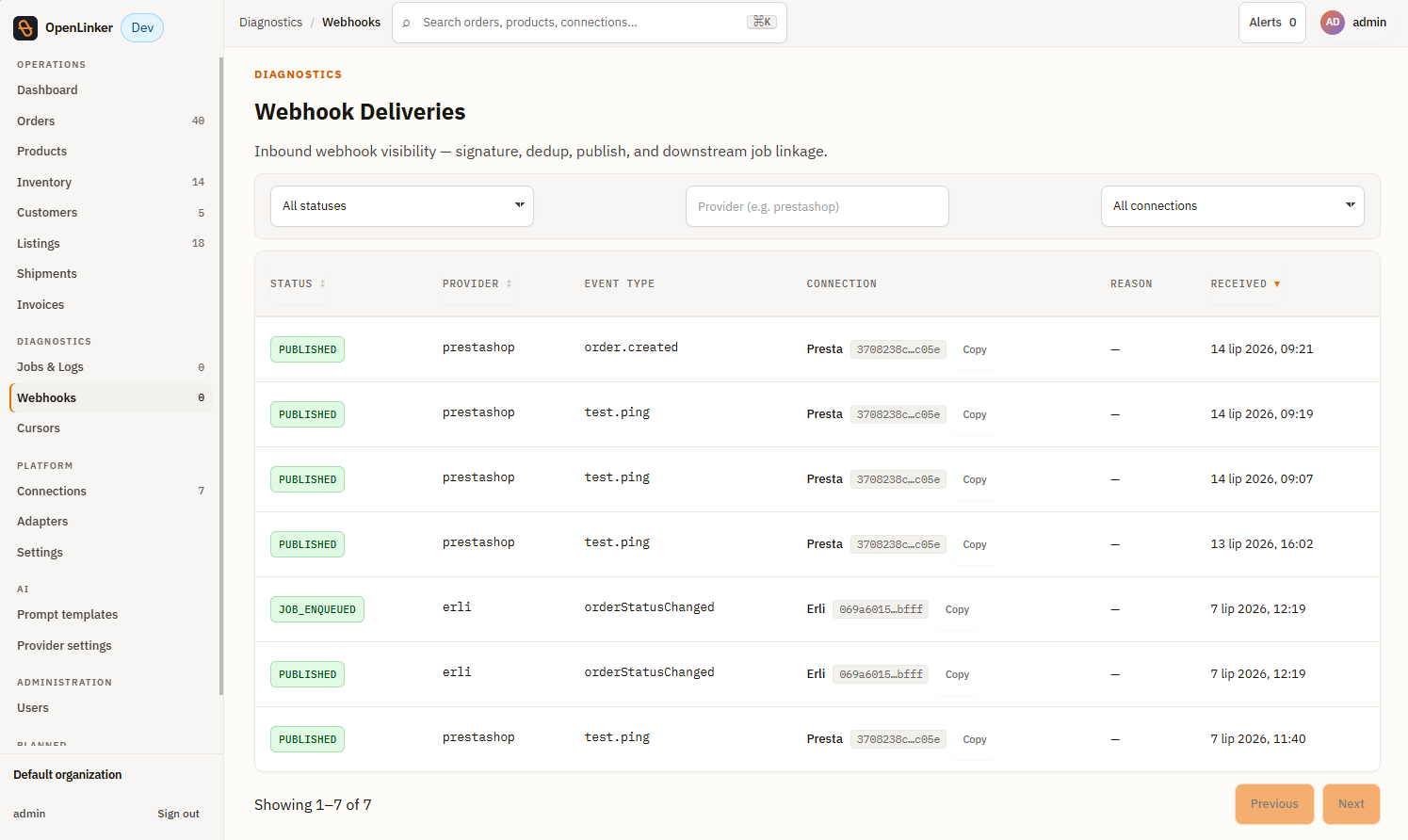
Each row represents one inbound webhook delivery. Columns include:
- Provider — the platform that sent the webhook (e.g.
prestashop) - Connection — which connection the webhook was routed to
- Event type — the event domain and type (e.g.
order.placed,product.updated) - Received — timestamp of receipt
- Status — delivery outcome:
| Status | Meaning |
|---|---|
| published | Accepted, deduplicated, and published to the event bus; a sync job was enqueued |
| duplicate | A webhook with the same event ID was already processed; this delivery was ignored |
| rejected | The webhook failed signature or timestamp validation; logged but not processed |
Payload inspector
Section titled “Payload inspector”Click a webhook row to see the full payload OpenLinker received. This is useful for confirming the event content when an expected order or product update didn’t trigger a sync.
🔍 If an order is missing and you expected a webhook: check the Webhooks log for a delivery from the same connection around the time the order was placed. If no entry exists, the webhook was never delivered to OpenLinker — check the platform’s webhook delivery log (e.g. PrestaShop module logs). If the entry shows
rejected, the webhook failed HMAC signature verification — confirm the shared secret matches what the platform was configured with.
Cursors
Section titled “Cursors”Open Cursors in the sidebar (under Diagnostics).
What is a cursor?
Section titled “What is a cursor?”A cursor is a sync-progress bookmark. When OpenLinker polls a platform for changes (orders since last check, offer events since last event ID), it stores a cursor to remember where it left off. The next poll resumes from that point — no events or orders are re-fetched unnecessarily.
Each cursor is identified by a key, for example:
allegro.offerStatus...— the Allegro offer-status scan cursorallegro.shipmentSta...— the Allegro shipment-status poll cursorprestashop.fulfillm...— the PrestaShop fulfilment cursorprestashop.orders.d...— the PrestaShop order watermark; stores thedate_updtimestamp of the last processed order
Cursors list
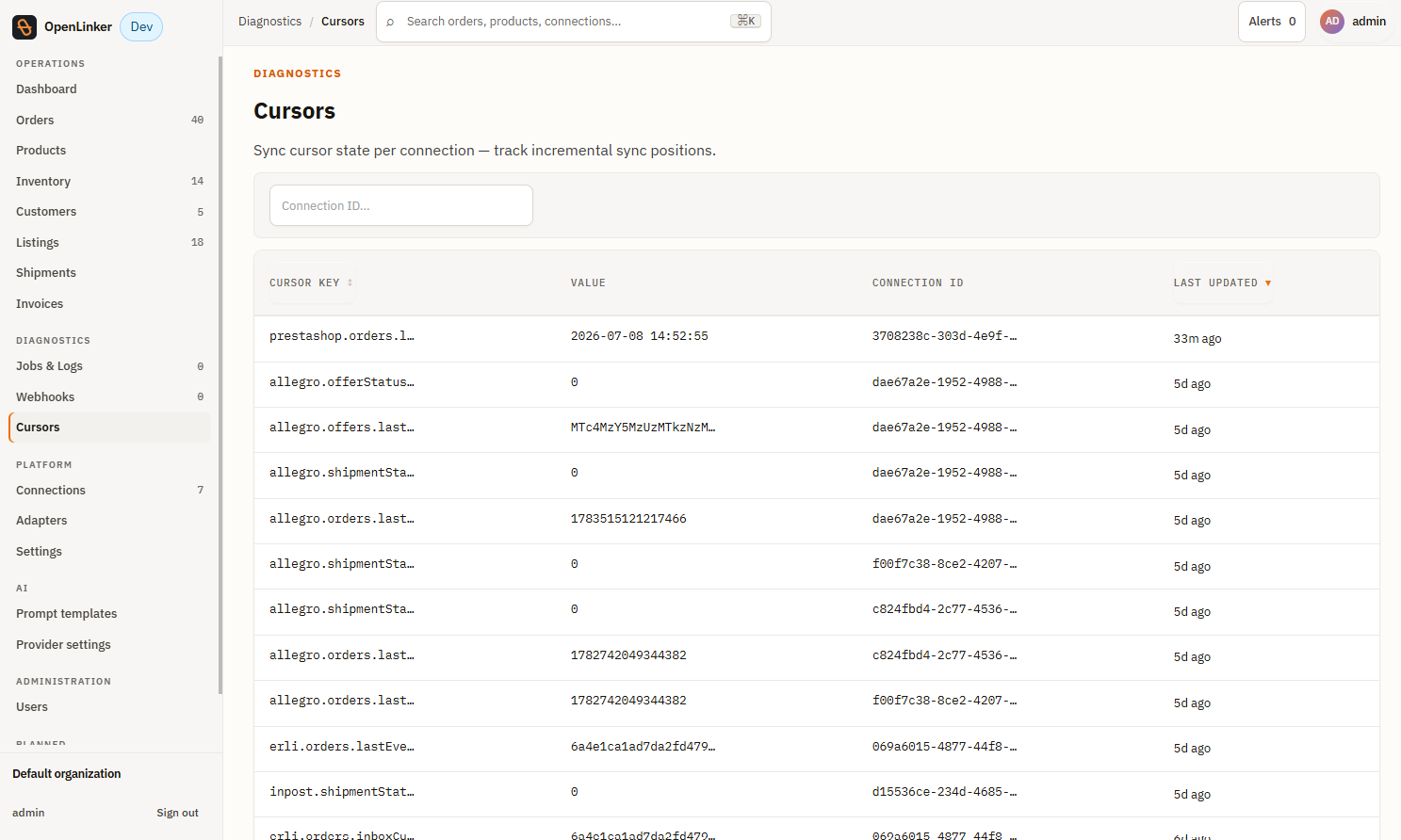
Section titled “Cursors list”Filter by connection using the Connection ID search box. Each row shows:
- Cursor key — the cursor’s identifier (connection-scoped)
- Value — the current bookmark value (an event ID, timestamp, or offset)
- Connection ID — which connection this cursor belongs to
- Last updated — when this cursor was last advanced by a successful sync
Resetting a cursor
Section titled “Resetting a cursor”⚠️ Resetting a cursor causes OpenLinker to re-fetch all events from the beginning (or a specified point). This is safe — ingestion is idempotent — but it may enqueue many jobs and take time to process.
If a sync is stalled (the cursor hasn’t advanced in an unexpectedly long time, or orders from a known period are missing), click the cursor row to edit its value, enter an earlier position, and save. The next scheduled poll resumes from the new position.
🔍 If orders from a specific date range are missing: check the order-poll cursor for the connection. If the cursor value skipped past that date range (e.g. due to a temporary API error), reset the cursor to before the affected window.
What’s next
Section titled “What’s next”For platform-wide configuration and AI settings: