

Sales documents (routing)
OpenLinker never decides what a sale legally requires — that stays your call and your accountant’s. What it does is execute the routing you configure: given an order, decide which document (an invoice, or a fiscal receipt) it gets and through which connection, automatically, the moment the order settles. This section walks through the Settings → Sales documents routing screen where you configure that routing, and the per-order Sales document panel that shows what happened (or explains why nothing did).
If you haven’t set up an invoicing or fiscalization connection yet, do that first — see Invoices and Fiscal receipts.
This page is the screen-by-screen walkthrough. Three shorter reference pages sit alongside it and go deeper on one question each:
- How OpenLinker decides which document a sale gets — the decision, in prose, for working out why one order got what it got.
- Setting up a market — a checklist for configuring a country the first time.
- Sales document states — every state an order can show, and what to do about it.
The idea in one sentence
Section titled “The idea in one sentence”For every market (a country your orders are delivered to), you tell OpenLinker: “an order like this gets that document, through that connection.” OpenLinker re-evaluates this on every order and issues automatically — no daily review, no manual clicking, unless you want it that way.
Prerequisites
Section titled “Prerequisites”- At least one active connection with
Invoicingand/orFiscalizationenabled (KSeF, inFakt, Subiekt GT, Subiekt nexo, or eparagony.pl — see the two guides linked above). - Knowing which of your order sources actually reports a buyer tax ID, if you plan to write rules that read one. All four sources can report it, but each only under its own condition: PrestaShop when the buyer filled in a VAT number on the address; Allegro and Erli when the buyer requested a VAT invoice; WooCommerce only if the store runs a supported VAT-number plugin. An order whose source asserted nothing is treated as not asserting a tax ID — never as “known to have none” — so a rule reading that condition neither matches nor rejects it. It simply never fires for that order.
Settings → Sales documents routing
Section titled “Settings → Sales documents routing”Open Settings → Sales documents routing. Under the heading What each market issues sits one list — a row per country you have configured, plus every country that has had recent order activity.
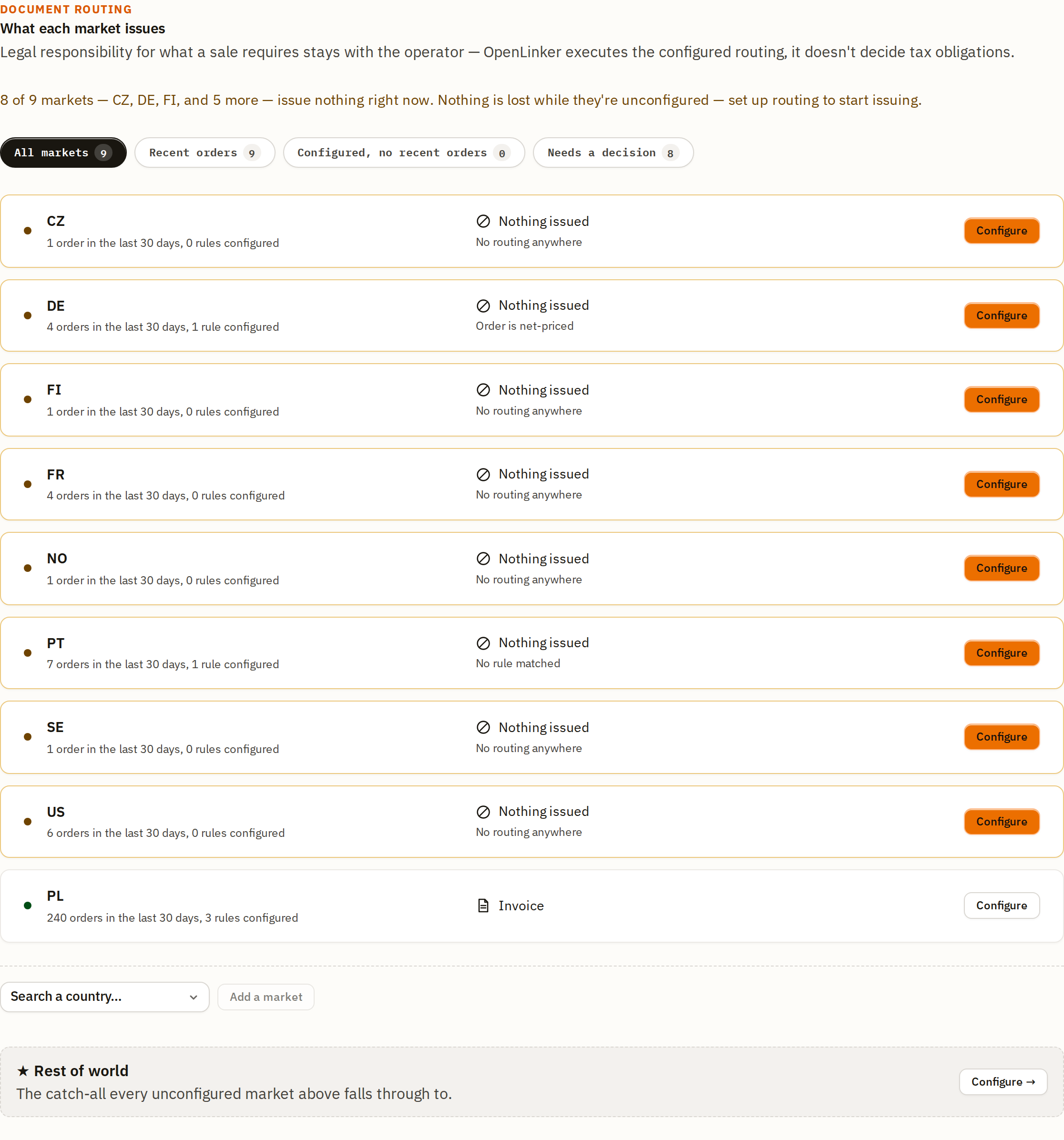
- The summary line above the list says how many markets currently issue nothing, and states plainly that nothing is lost while they are unconfigured.
- Four filter chips, each with a count, decide which rows are shown: All markets, Recent orders, Configured, no recent orders, and Needs a decision.
- Within whichever filter is active, rows are also ordered and highlighted: markets needing a decision come first and are drawn with a warning outline; markets that are already routing follow, plain.
- Each row shows the market, a plain-sentence line such as 4 orders in the last 30 days, 1 rule configured, what it currently issues (or Nothing issued), and — when it issues nothing — a short reason such as No routing anywhere or Order is net-priced. Where OpenLinker ships a template for that country the reason line ends · Starter setup available.
- The row’s action is always Configure, whatever state the market is in — one label for one action.
- Below the list, a country search plus Add a market opens the routing dialog for a country that has no orders and no configuration yet. It is a real ISO 3166-1 dictionary, not a free-text code field, and a country already in the list above is shown disabled rather than offered twice.
- ★ Rest of world has its own row at the bottom of the section, described as the catch-all every unconfigured market above falls through to, with a Configure → action of its own.
Further down the same page, Connected providers lists each connection: what it may issue, whether it goes first, and when. That table is where the “primary” flag in How auto-issue actually decides is set — it is a per-connection setting, not a per-market one.
Where OpenLinker ships a starter template for a country (Poland is the only one today), it is offered inside that market’s routing dialog, at the top, as a collapsed Suggested starter template accordion — not on the list page. Open it to see the template’s rules with a connection picker each, its cited public source, and a plain statement that this is not legal advice; nothing is written until you press Review & adopt, and Start from scratch instead dismisses it.
The routing dialog: four tiers
Section titled “The routing dialog: four tiers”Every market’s dialog follows the same four-tier ladder. An order is evaluated top to bottom; the first tier that resolves it wins. Every control saves as you change it — there is nothing to submit.
Tier 1 — Rules
Section titled “Tier 1 — Rules”Rules are the sharpest tool: conditions you author yourself, each pointing at a document type and a connection.
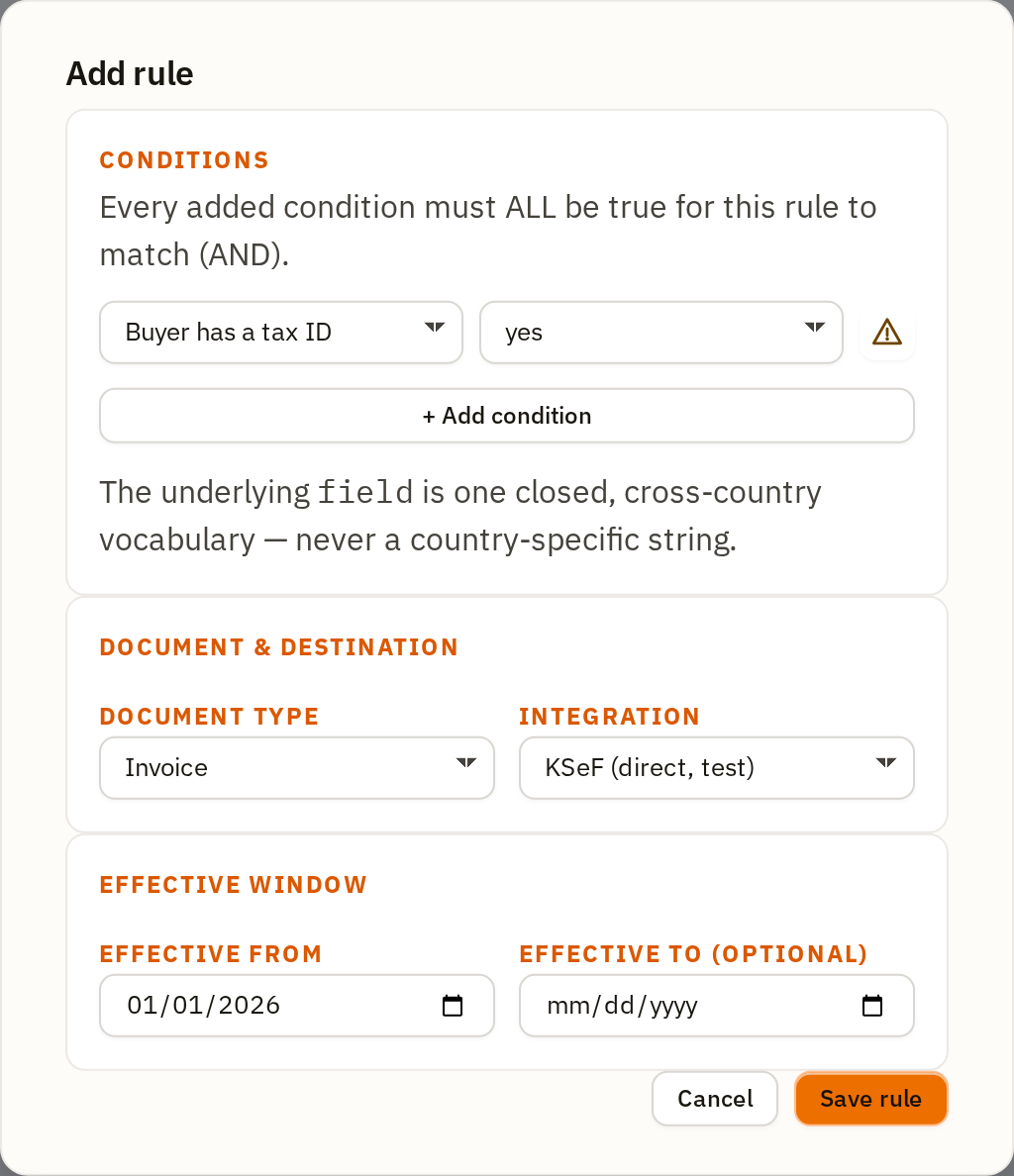
The dialog is grouped into three blocks, so you can tell what a rule matches from what it does from when it applies:
- Conditions are AND-combined — every one you add must be true for the rule to match. Three condition fields exist today: Buyer has a tax ID (yes/no), Order country is, and Order total (gross) (a comparison against a named threshold, never a free number, so the same threshold can be reused and reasoned about across rules). The threshold picker shows each threshold’s name with its amount and currency.
- Document & destination holds Document type (Invoice or Receipt) and Integration — the connection that issues it, filtered to connections that actually support the chosen document type.
- Effective window holds Effective from and Effective to (optional), which let a rule apply only from a given date, optionally until another — useful when a threshold or a provider changes and you don’t want to rewrite history.
- Exactly one rule may match an order. Rules have no priority and no order. If two rules both match, the order is held, not guessed at — you’ll see this reported on the order itself.
A buyer-tax-ID condition carries a small warning glyph beside it. Hover or focus it for the caveat: this fact reaches OpenLinker only when the order’s own source recorded it, so such a condition never matches an order whose source asserted nothing — that order falls through to the next tier instead. The glyph appears whenever you author the condition; it is a standing caveat about sources, not a check against your own order history.
Worked example: three rules for Poland
Section titled “Worked example: three rules for Poland”Here is a genuine three-rule configuration for Poland that a company seller might use — route by whether the buyer asserted a tax ID and how large the order is:
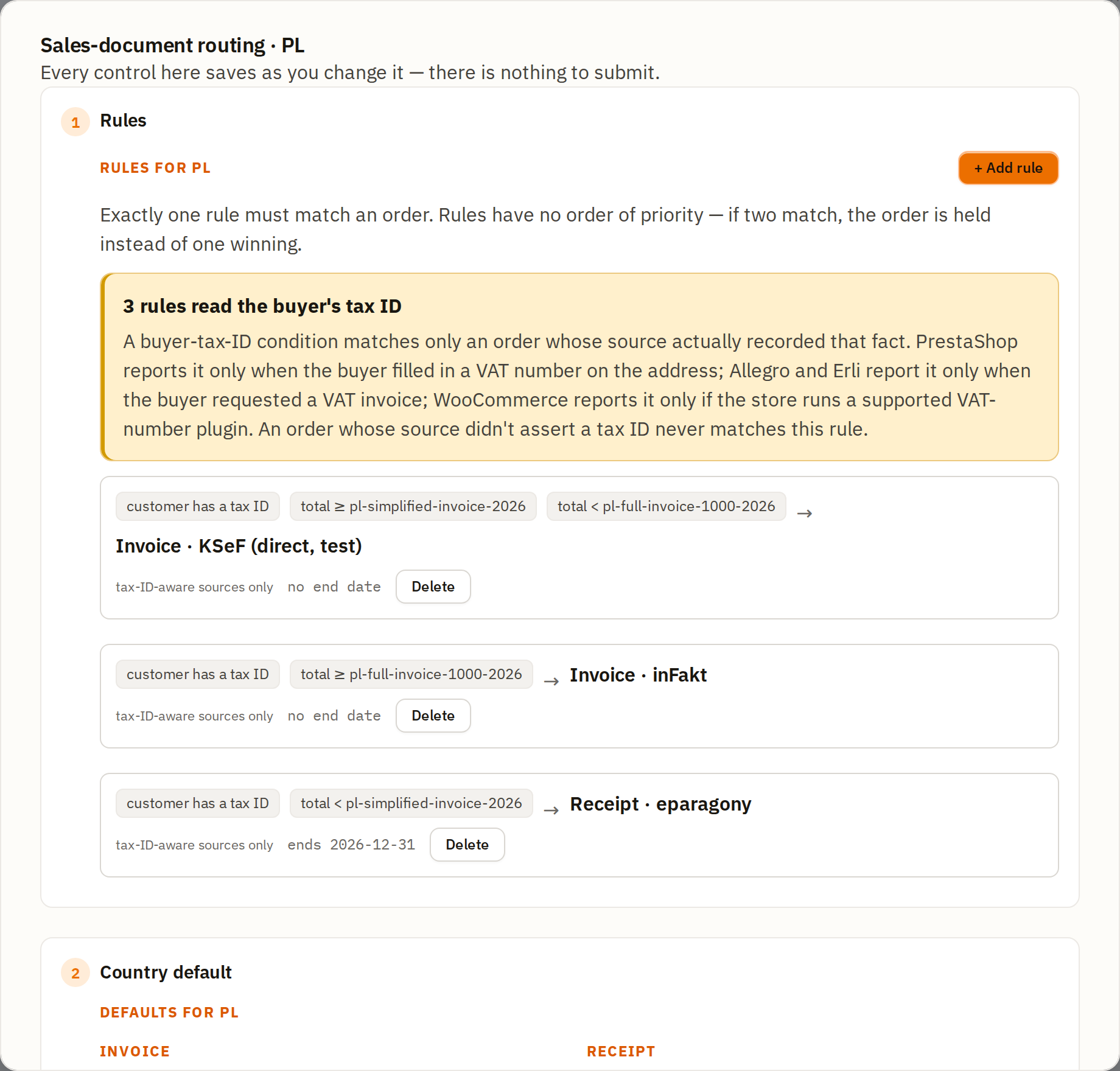
Read together, these three rules say:
| Buyer has tax ID | Order total | → | Document | Connection | Ends |
|---|---|---|---|---|---|
| Yes | below pl-simplified-invoice-2026 (450 PLN) | → | Receipt | eparagony | 2026-12-31 |
| Yes | at or above pl-simplified-invoice-2026, below pl-full-invoice-1000-2026 (450–999.99 PLN) | → | Invoice | KSeF (direct, test) | — |
| Yes | at or above pl-full-invoice-1000-2026 (1000 PLN) | → | Invoice | inFakt | — |
Each rule renders as its condition chips, an arrow, and document · connection,
with its own meta line beneath: a tax-ID-aware sources only tag where it reads
that condition, its effective window (ends 2026-12-31, or no end date), and
a Delete button.
The rule cards show the threshold names, not the amounts, because a name is
what a rule stores — on this install pl-simplified-invoice-2026 is 450 PLN and
pl-full-invoice-1000-2026 is 1000 PLN. Only the receipt rule here carries an
end date; the two invoice rules run indefinitely.
A threshold is defined in one currency, and amounts are never converted when routing decides. An order priced in a different currency therefore matches no amount-based rule and is reported as a currency mismatch — see How routing decides for that state and its remedy.
An order where the buyer asserted no tax ID matches none of them and falls to Tier 2.
The banner above the rule list — “3 rules read the buyer’s tax ID” — is a standing count, not an error, and it carries the caveat that matters: a buyer-tax-ID condition only matches an order whose source actually recorded that fact. On an install whose sources rarely report one, a market built entirely out of tax-ID rules will fall to its default on almost every order, so keep a default in place beneath them.
Note (a known limitation as of this writing): an Order total (gross)
condition needs the order to be reported with a gross total. Some order
sources report totals net of tax even when the buyer paid the gross amount — an
order from such a source can never match an amount-based rule. If a market’s
orders are consistently landing as Order is net-priced, this is why; the
remedy is a condition that does not depend on the total.
Tier 2 — Country default
Section titled “Tier 2 — Country default”If no rule matches (or the country has no rules at all), the country default applies — one connection, no conditions.
You can set an invoice default and a receipt default separately. Setting both disables the fallback: the tier then has nothing to choose between, so every order that no rule matched is held instead of issued. The dialog says so under the pickers — a warning headed Both an Invoice and a Receipt default are set — and this is the single most common way a market ends up issuing nothing while looking configured. Set one, not two — or add a rule that decides between them. With one default set you get the quieter reminder instead.
The default’s pickers are filtered exactly like a rule’s: the invoice default
lists Invoicing-capable connections, the receipt default Fiscalization-capable
ones.
Tier 3 — depends on whether the market is configured
Section titled “Tier 3 — depends on whether the market is configured”Tier 3 is the one tier whose meaning changes, and reading it wrong is the easiest way to misconfigure a market:
- On a market with no rules and no default at all, Tier 3 reads Falls through to ★ Rest of world — the order goes to Rest of world’s own rules and defaults, and the tier carries an Open ★ Rest of world’s routing → button that switches the dialog straight there (with a ← Back to {country} link to return).
- On a market that carries any rule or default of its own, Tier 3 reads An unmatched order is held. A configured market never falls through. If its own rules and default produce no answer, the order stops there.
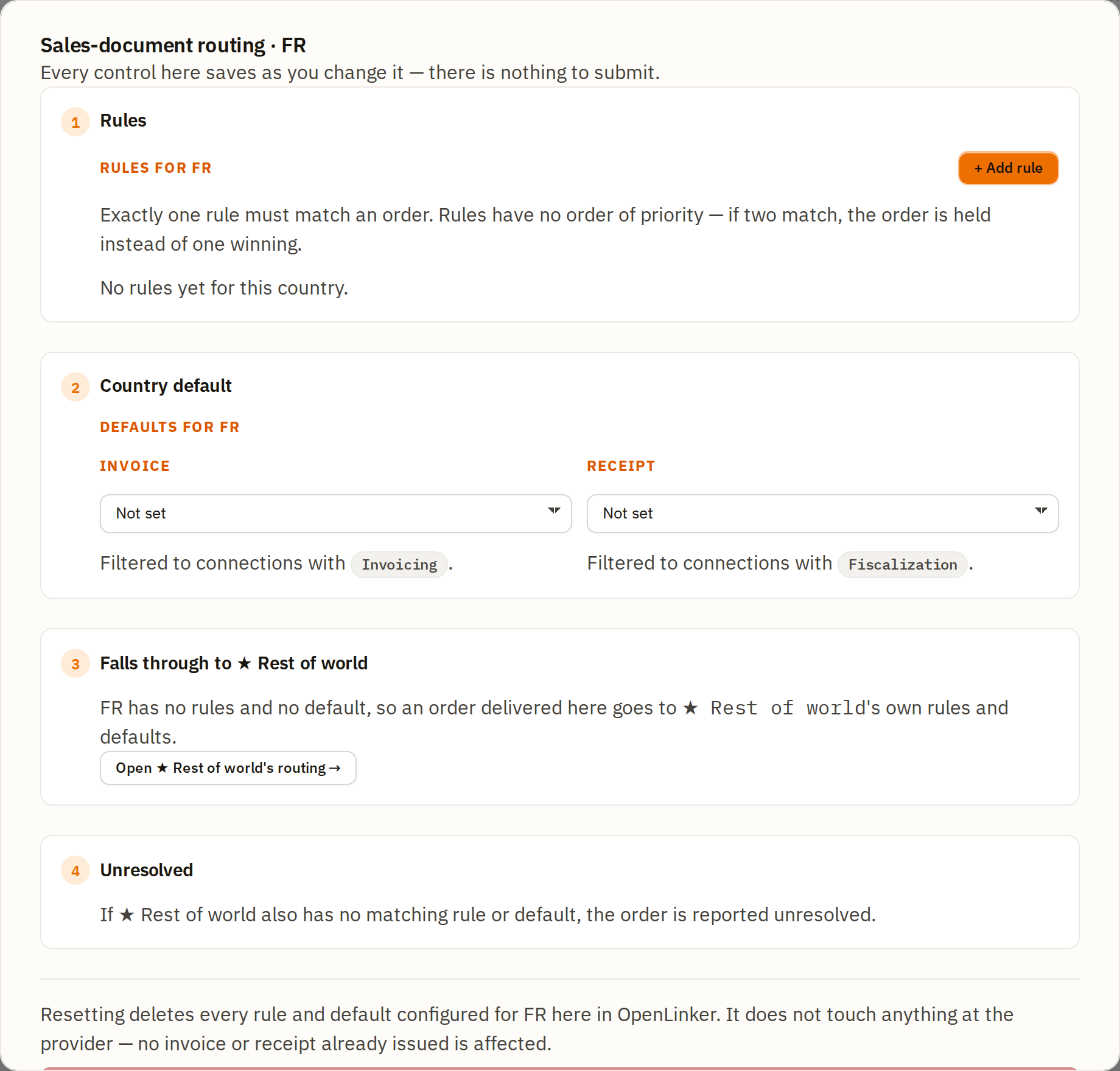
That distinction matters when you are debugging: setting up Rest of world does not rescue a configured market that is not working.
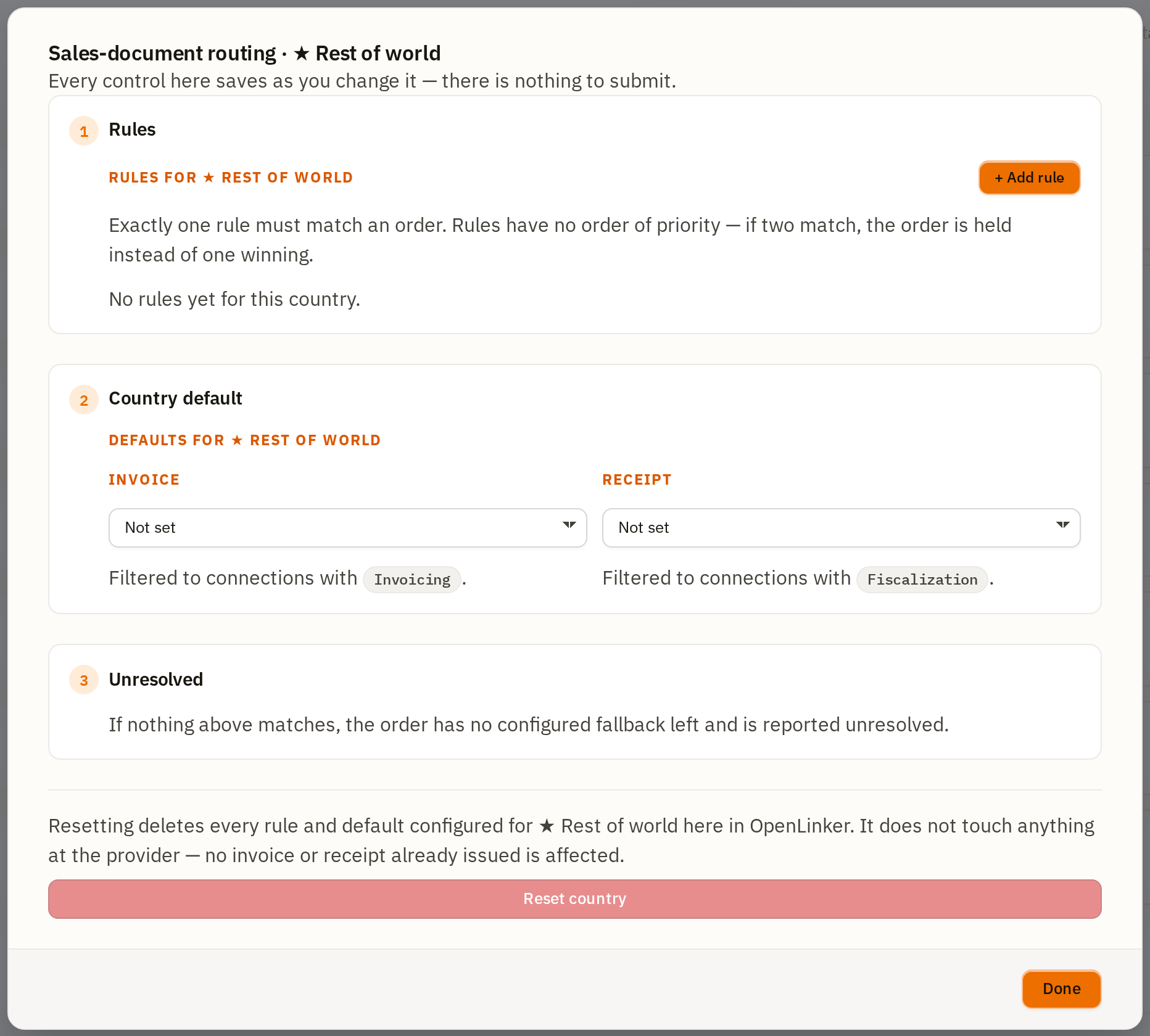
This is what makes Rest of world useful: set an invoice default there once, and every market you have not touched auto-issues through it — you don’t have to configure every country you might ever sell to in advance.
Its own dialog is the one place with only three tiers (Rules, Country default, Unresolved). There is no fall-through tier because Rest of world is the fall-through, and it cannot fall through to itself.
Tier 4 — Unresolved
Section titled “Tier 4 — Unresolved”If nothing above resolved the order, it is reported unresolved. Nothing is issued, nothing is silently guessed, and the reason is persisted on the order itself (see the next section).
”No sales document, by design”
Section titled “”No sales document, by design””Not every market needs a document at all — maybe you don’t sell there, or a local rule puts it out of scope. OpenLinker asks you to say so explicitly, so that a deliberate decision can be told apart from a market nobody has looked at yet — and it asks on the way out, not up front.
Close a market’s dialog (with Done, Escape, or by clicking outside) while it carries no rules and no defaults and has not been acknowledged, and this confirmation appears instead of the dialog simply closing:
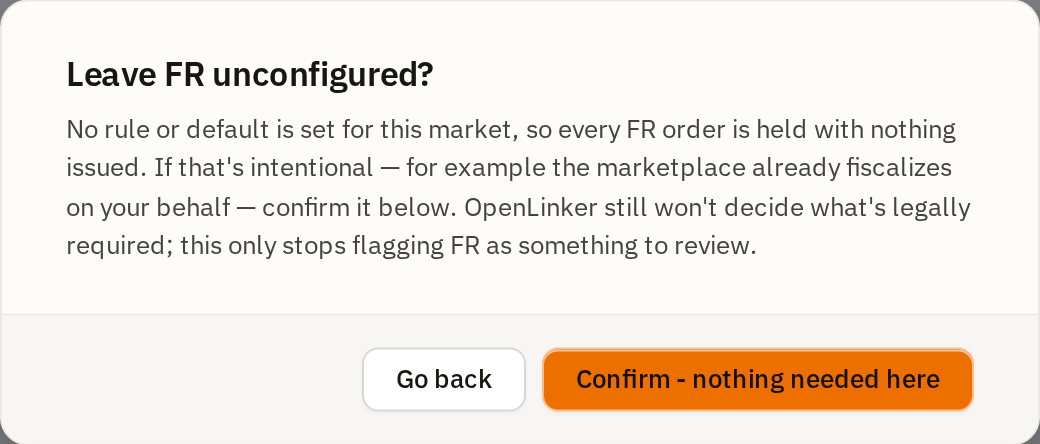
Go back returns you to the dialog, unchanged, so you can configure the market instead. Confirm - nothing needed here records the acknowledgment and closes.
The acknowledgment is a statement you are making today, not a permanent lock. Re-open that market and its dialog carries a green No sales document, by design notice with when you acknowledged it and an Undo button; add a rule or a default and the notice goes on its own.
Resetting a market
Section titled “Resetting a market”Each market’s dialog carries a Reset country action in its footer, which deletes every rule and default configured for that market in OpenLinker. It is disabled when there is nothing to reset, and it asks for confirmation naming exactly what will go. It touches nothing at the provider — no invoice or receipt already issued is affected.
The order-level Sales document panel
Section titled “The order-level Sales document panel”Every order’s detail page (Orders) carries a Sales document panel reporting what routing decided for that specific order. Sales document states is the full reference; the states below are the ones you will meet most.
Unresolved — no routing anywhere
Section titled “Unresolved — no routing anywhere”If the order’s market has no rule and no default, and ★ Rest of world doesn’t resolve it either, the panel says so plainly:
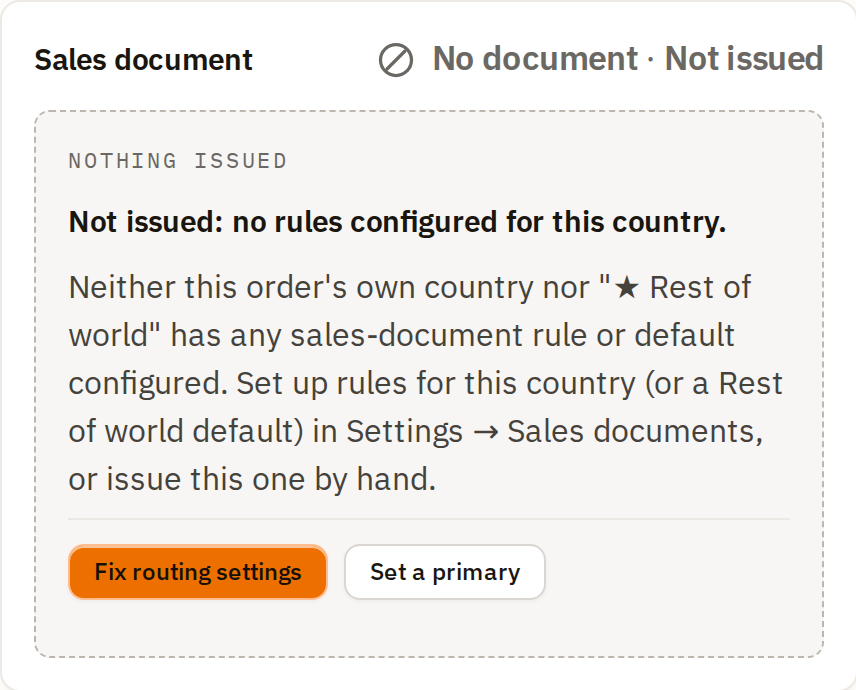
Two actions are offered:
- Fix routing settings (the primary one) goes straight to Settings → Sales documents routing, where the market’s routing is configured.
- Set a primary goes to a connection’s own edit page, where marking it
primary makes it the last-resort issuer so orders like this one start issuing
without full rules. It is only offered when there is an
Invoicing-capable connection to name; on an install with none, the block renders with the one action.
Issuing this particular order by hand is still available, one disclosure down — see the next section.
Not issued — issuing by hand
Section titled “Not issued — issuing by hand”Where the connection is configured to issue by hand, the panel says nothing is wrong: This connection issues sales documents by hand. Nothing is wrong — no document is issued automatically here. Issue this one whenever you are ready.
Issuing by hand is a secondary path, so it sits behind a collapsed disclosure — Issue or register manually instead — beneath the routing block and its two actions. Open it and both halves are there, one for an invoice and one for a fiscal receipt, because either, or neither, may apply to a given order:
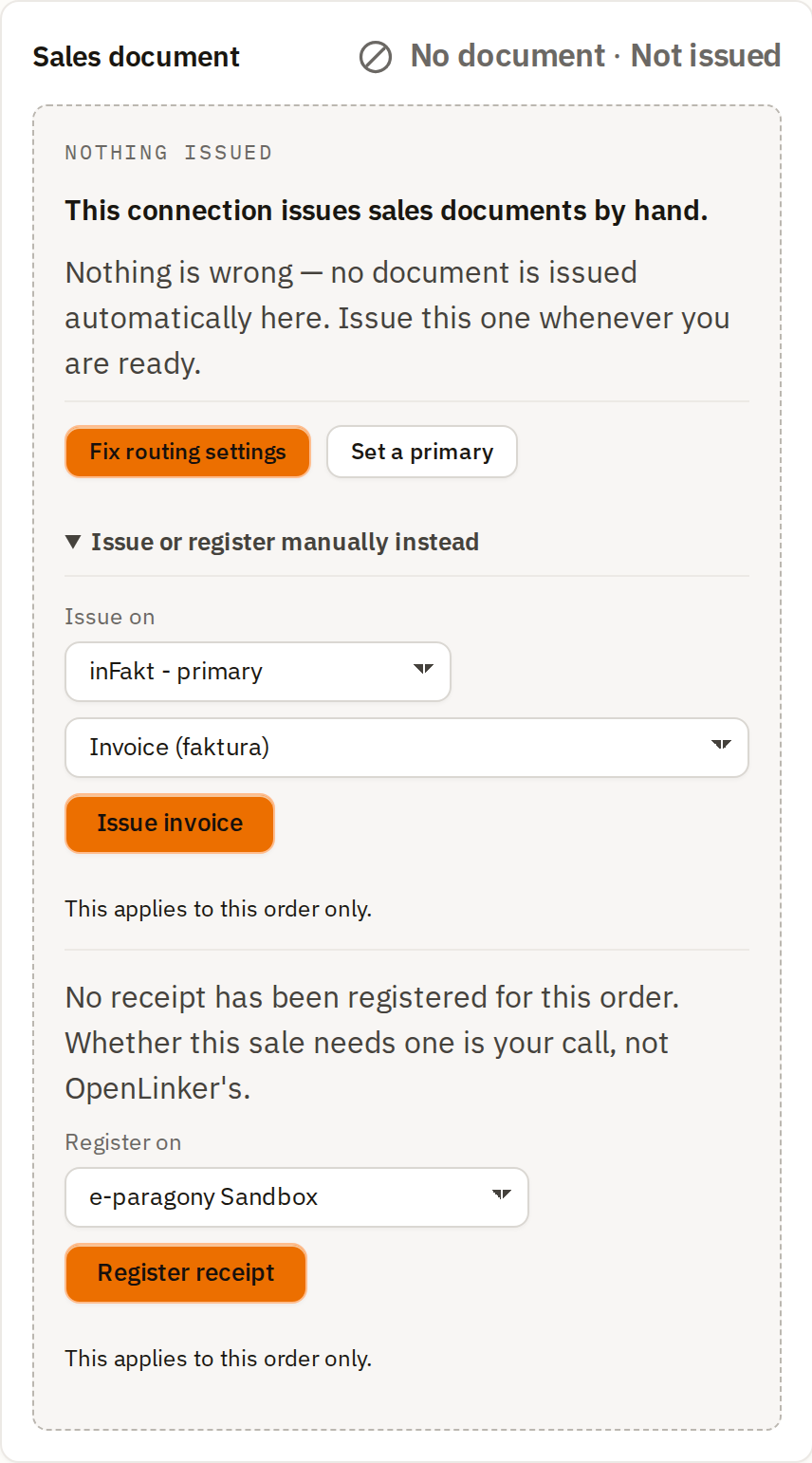
Each half notes that it applies to this order only — issuing here changes nothing about the market’s routing. The connection pickers appear only where there is more than one candidate to choose between.
The same disclosure is how you issue by hand from any not-issued state, including the unresolved one in the previous section — it is not exclusive to a manual connection.
Only one of the two can be exercised per order. Once either has been used, the other simply disappears from the panel, because an order gets one originating sales document, never both. For an issued invoice the rule is spelled out under Why this document? at the bottom of the panel.
In progress
Section titled “In progress”Once you (or auto-issue) trigger a registration, the panel’s heading switches to Registering and the page keeps polling for the result. Registering continues even if you navigate away, and the panel says so:
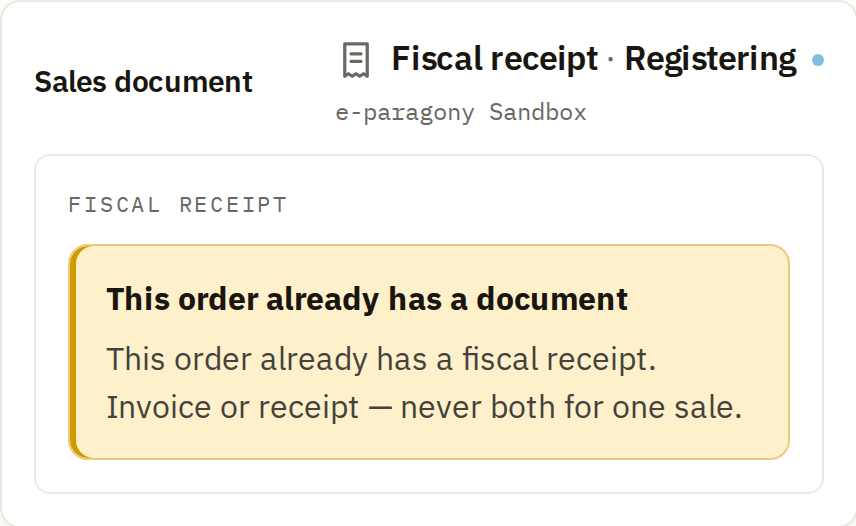
Issued — the lifecycle stepper
Section titled “Issued — the lifecycle stepper”Once a document is issued, the panel’s heading names the document type and the stage it has reached, and the body shows a lifecycle stepper and every provider-reported field. The connection that issued it is already in the heading, so it is not repeated in the body; Why this document? at the bottom of the panel explains where every further action goes. Two lifecycle states, from two different invoices:
An invoice submitted, awaiting the tax authority’s clearance — Invoice · Awaiting clearance:
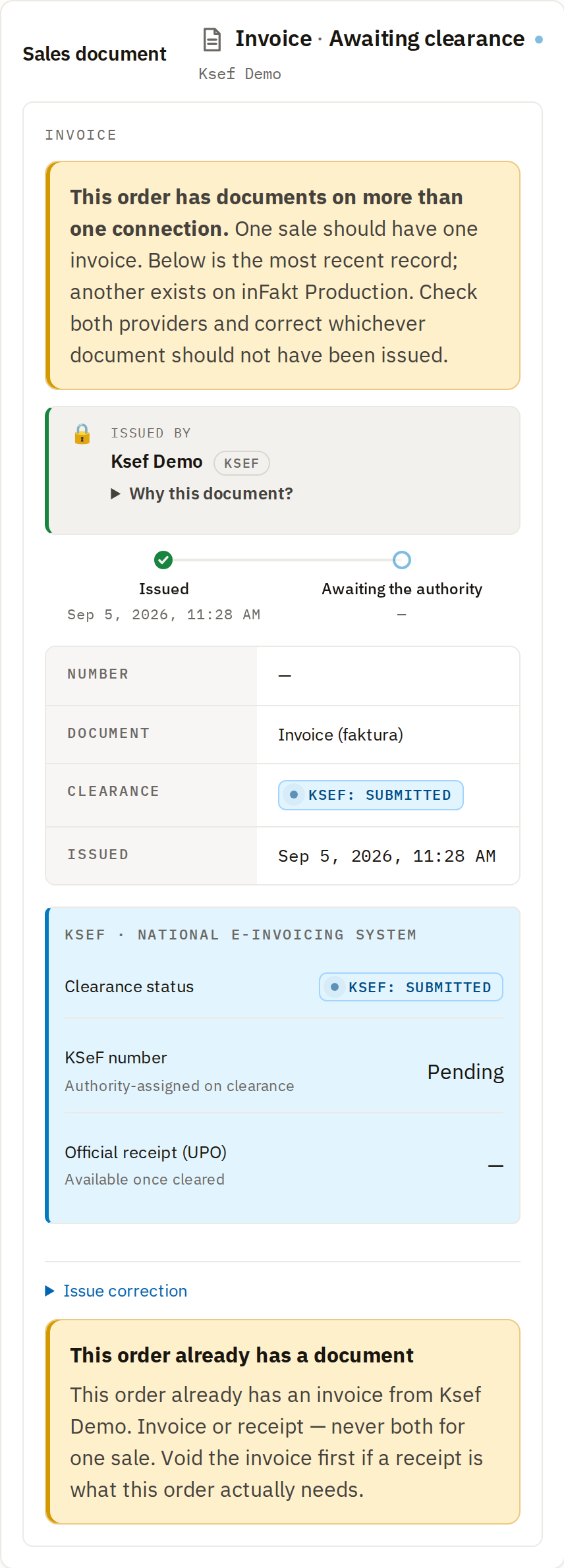
That capture also shows a state worth recognising: a warning that the order has documents on more than one connection, naming the other one. An order is meant to get exactly one originating document, so OpenLinker shows the most recent record and asks you to check both providers and correct whichever should not have been issued.
Another invoice, after KSeF accepted it — Invoice · Cleared:
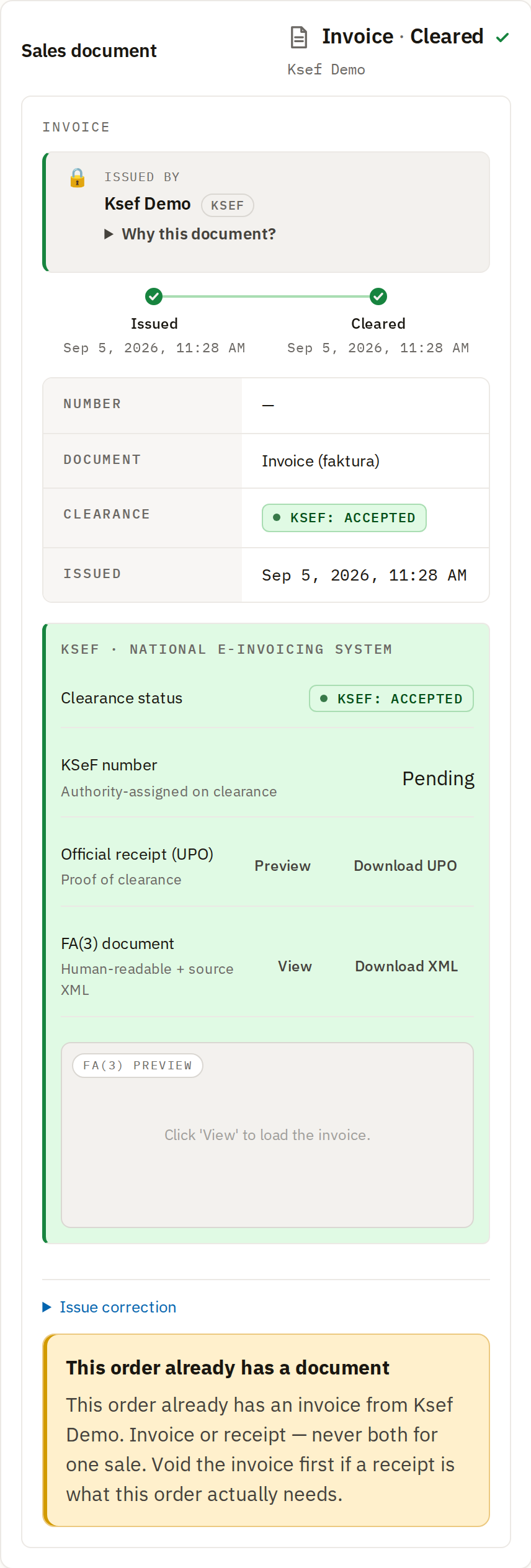
Note the two words for one thing: the panel’s own heading and stepper say Cleared, while the clearance field reports the authority’s own answer, KSEF: ACCEPTED. The Invoices pages use the authority’s word throughout, so expect Accepted there.
A fiscal receipt, once registered, has no clearance step — it is a single terminal state with every field the provider returned:
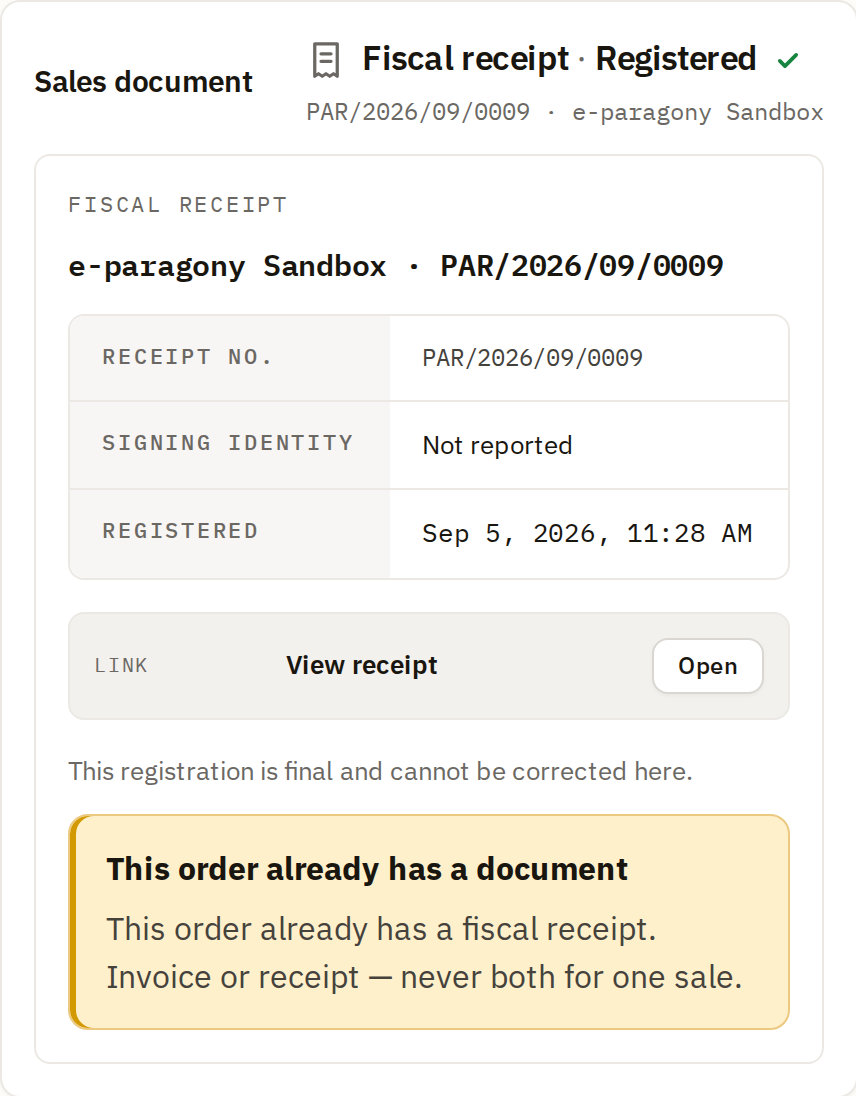
Note the receipt panel’s own honesty: “This registration is final and cannot be corrected here.” Unlike an invoice, a fiscal receipt has no correction primitive in OpenLinker — talk to your provider directly if one is needed.
Issuing a correction
Section titled “Issuing a correction”An issued invoice (not a receipt) can carry a correction — a new document linked to the original, never an edit of what was already issued. The action is visible in both invoice screenshots above; it walks you through a per-line correction, the same flow documented in Invoices → Issuing a correction.
How auto-issue actually decides (so you can predict it)
Section titled “How auto-issue actually decides (so you can predict it)”Put together, this is the decision an order goes through the moment it settles:
- Does this order’s own market have a rule that matches it? → issue there.
- No rule matched (or none exist) — does the market have a country default? → issue there.
- The market has nothing configured at all — does ★ Rest of world resolve it (its own rules, then its own default)? → issue there.
- Nothing above resolved it → the order is unresolved, and the reason is persisted and shown on the order.
Two things are worth stating plainly, because both surprise people:
- Two matching rules never mean “pick one.” If a market’s rules are ambiguous for an order, that order is held exactly like an unresolved one — a wrong pick on a fiscal document is a legal event, not a UX inconvenience.
- A connection’s “primary” flag is a last resort, not a routing input. It has no effect on rule or default evaluation at all. It is consulted only when the market, and Rest of world, have nothing configured: if exactly one connection could issue, that one is used; if several could, the one marked primary wins; if several could and none is primary, the order is held. So an install with a primary set and no routing anywhere still issues — which is usually what you want, and worth knowing before you conclude that an unconfigured market issues nothing. It is set per connection, in the Connected providers table further down the same Settings → Sales documents routing page, alongside what that connection may issue and when.
What’s next
Section titled “What’s next”→ Listings & Offers — create marketplace offers from your synced catalog
Need the connection-level detail first? See Invoices and Fiscal receipts for the Invoices list, invoice detail page, and the fiscal-receipt connection setup this routing depends on.